VideoEdge 201 - Licensing
Introduction
This module will go over licensing VideoEdge.
Once you have installed your VideoEdge NVR, a temporary 60 day license will be included. The purpose of the 60 day temporary license is to allow for the installation and commissioning of the camera system, before applying for a permanent license. Once the permanent license is applied, the time until your SSA expires begins to decrease. The default SSA period is 12 months.
Once the VideoEdge NVR software has been initialized and not permanently licensed, i.e. once you have completed the Installation wizard on the VideoEdge NVR; the 60 day temp license starts to count down the days until it expires. In order to utilize the following features, a permanent or centralized license will need to be applied.
Support additional network IP camera devices
Video Intelligence
Facial Recognition
Facial Verification
License Plate Recognition
Deep Intelligence
By the end of this module, you should be able to answer the following questions:
What are the 3 available license types for VideoEdge and when should they be used?
Where can I find the table containing the maximum number of licenses if required?
What does the Licensing page on the VideoEdge NVR show?
What are the optional licensable features for VideoEdge NVR?
How do I license a VideoEdge NVR with a Local License?
Table of Contents
License Types
There are 3 available license types for a VideoEdge NVR:
Temporary - This is the 60 day trial license that is supplied with a VideoEdge.
Local - The local license for a single VideoEdge.
victor Centralized - A centralized license is a victor license that contains both victor and VideoEdge features. victor Centralized licenses are not stored on the VideoEdge - they are stored on a victor Application Server. To access the centralized license features, you must configure your VideoEdge to connect to the victor Application Server. This enables all camera and analytic licenses for multiple VideoEdge's to be stored in one place.
VideoEdge Licensing
Licensing is based on the number of IP connected cameras used by the VideoEdge.
You can use the temporary license supplied to configure your VideoEdge, add cameras and configure motion detection before you apply for a license.
You can upgrade to support additional network IP camera devices by purchasing the add-on camera licenses.

Depending on the VideoEdge model, the maximum number of camera licenses can vary.
When the trial license period expires, the camera and storage functions disable automatically. You must purchase a Local Permanent or victor Centralized license to allow permanent recording.
Model | Maximum Number of Licenses | Maximum Number of Analog Cameras |
|---|---|---|
32 Channel IP Only Desktop | 32 | 0 |
16 Channel Hybrid Desktop | 16 | 8 |
32 Channel Hybrid 2U Rack Mount (RAID and Non-RAID) | 32 | 16 |
64 Channel Hybrid 3U Rack Mount (RAID and Non-RAID) | 64 | 32 |
Dell Units | 128 | 0 |
You can combine both single IP cameras and multiple analog cameras that are attached with an encoder.
For example, if you can connect up to 16 cameras to a VideoEdge Desktop Hybrid. Of these cameras, you can connect 16 IP cameras, or you can mix analog and IP cameras.
If you attach a fully populated 8 channel IP encoder, and 8 single IP cameras, this is counted as a total of 16 cameras. Essentially, you will only be using 9 IP camera licenses – One IP license for the 8-channel Encoder (if this was a one IP Address Encoder) – but if the VideoEdge NVR only supports a total of 16 cameras, then you would have achieved your camera allowance of 16 cameras or channels, in total).
Licensing Page Overview
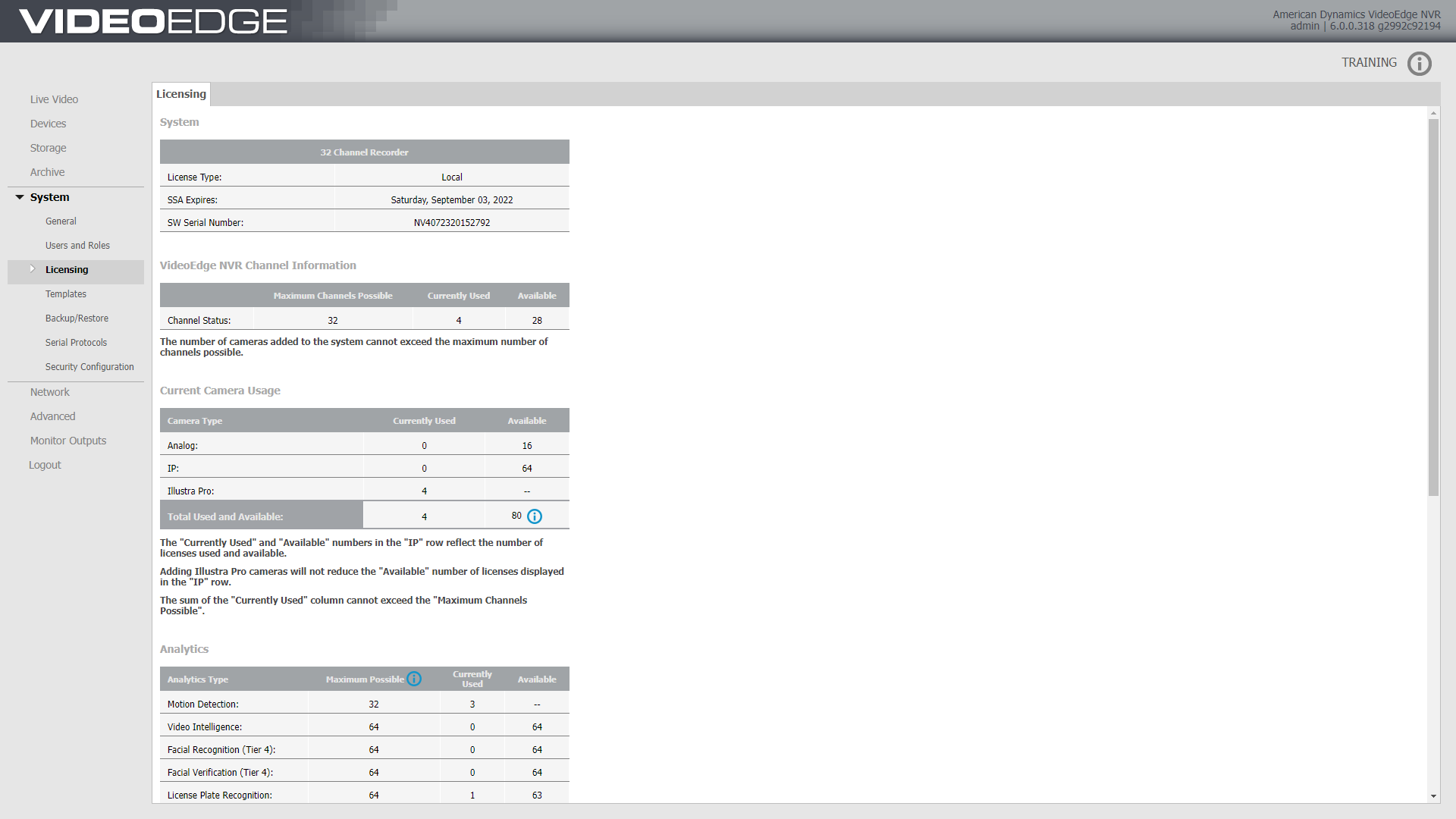
To apply a license, use the Licensing page in the VideoEdge Administration interface. From here you can Generate a Host ID, Apply a Local License, Enable Centralized Licensing, edit the Software Service Agreement (SSA) message, add/edit SSA Contacts and add/edit the SMTP Server.
The Licensing Status section provides the following information:
License Type - The type of license for the VideoEdge: Temporary, Local, or victor Centralized
SSA Expires - The expiry date for your Software Service
SW Serial Number - The software serial number for your VideoEdge. This is a unique identifier for your VideoEdge and is required when applying for a license.
Channel Status - The total number of channels that the VideoEdge can support.
IP cameras use on IP license and one channel.
Analog cameras do not use a license, but they use a channel
Encoders use a single license but can use multiple channels.
IP - The total number of IP licensed cameras available for your VideoEdge.
An IP camera uses one license while an encoder/device with a single IP address can support multiple channels with a single license.
An encoder with multiple IP addresses will require more than a single license.
Total Used and Available - The combined totals of currently used and available analog devices, IP licensed cameras, and Illustra Pro camera licenses on your VideoEdge.
Illustra Pro - The total number of Illustra Pro cameras that are available for your VideoEdge.
From version 5.1 on-wards, VideoEdge NVR’s purchased from American Dynamics allow you to add Illustra Pro cameras without consuming a license. For this to happen the VideoEdge must be either Locally licensed or using Centralized Licensing. These cameras will contribute to the number of channels that the VideoEdge NVR can support.
To enable analytics for your Illustra Pro camera, you need to purchase and analytic license.
Analytics - For each of these camera analytics, the Licensing Status section displays the number of analytic licenses that are available. If you use Centralized licensing, the Maximum column display the recommended number of each analytic that this VideoEdge can process. If Local licensing is used, the Maximum column displays the number of each analytic that you have on you VideoEdge license.
A license is generated based on the number of devices attached to the VideoEdge. This can be either a camera or a camera encoder with multiple analog cameras attached. A license generated for one VideoEdge cannot be used with another VideoEdge, however, you can replace cameras and devices on the VideoEdge without requiring a license change. If you are using Centralized Licensing, then the you can make these changes without contacting the Licensing Department. This is one of the many advantages of using Centralized Licensing. If a Local License is been used, then you would need to contact the Licensing Department, for them to make the necessary changes – moving IP licenses from one VideoEdge NVR to the other, and re-issue new VideoEdge NVR licenses.
The NVR has optional licensable features consisting of:
Video Intelligence
Facial Recognition
Facial Verification
License Plate Recognition
Deep Intelligence
Licensing VideoEdge (Local License)
Licensing a VideoEdge with a Local License is a 3 step process:
Generate a Host ID
Register for a license online
Apply license to VideoEdge
1. Generate a Host ID
The Host ID is a unique reference for your VideoEdge. Before registering and applying for a VideoEdge license online, you must generate the Host ID for the VideoEdge you are licensing. The Generate Host ID tool is used to generate a Host ID specific to the VideoEdge device and should be entered on the VideoEdge registration page on the American Dynamics website. The website can be accessed via the VideoEdge Licensing Activation Icon on the VideoEdge Desktop or by going to the following address: http://americandynamics.net/support/registerdirect.aspx.

You will need to have a registered account on the American Dynamics Website to be able to request a license.
Before you generate the Host ID, you must ensure that all Network Interface cards (NICs) intended to be used with the VideoEdge, for example, a Client LAN, Camera LANs or Storage LANs, are already installed on the server / configured.
2. Register for a License online
After generating Host ID, the next step is to register your VideoEdge and upload the Host ID file to the American Dynamics website. The online form also requires your Software Serial Number which can be found on your VideoEdge installation media, on a sticker on the VideoEdge or on the About page accessed by selecting the Information icon in the VideoEdge Administration Interface.
An account on the American Dynamics website is required before registration.
3. Apply License to VideoEdge
When an email has been received containing the license file, it can be applied to the VideoEdge.
https://youtu.be/Wis9GFimc1YSummary
In this lesson, you learned about the different license types for VideoEdge and learned how to locally license a VideoEdge NVR.
Use the checklist below to confirm your knowledge.
I know the 3 available license types for VideoEdge and when to use them.
I can reference the table containing the maximum number of licenses if required.
I can explain what the Licensing page on the VideoEdge NVR shows.
I know the optional licensable features for VideoEdge NVR.
I can successfully license a VideoEdge NVR with a Local License.